

IPTV Box UK – Watch IPTV on Your Favourite Devicesr
Looking for an IPTV box in the UK? Discover how to watch live TV, sports, films and series on your favourite devices with IPTV Trial UK. Whether you use an Android iptv box, Amazon Fire TV Stick, Smart TV, Apple TV or computer, choosing a compatible device makes streaming easier. Explore your options, compare popular streaming devices and find the right setup for your home entertainment needs.
Watch IPTV on Smart TVs, Firestick & More
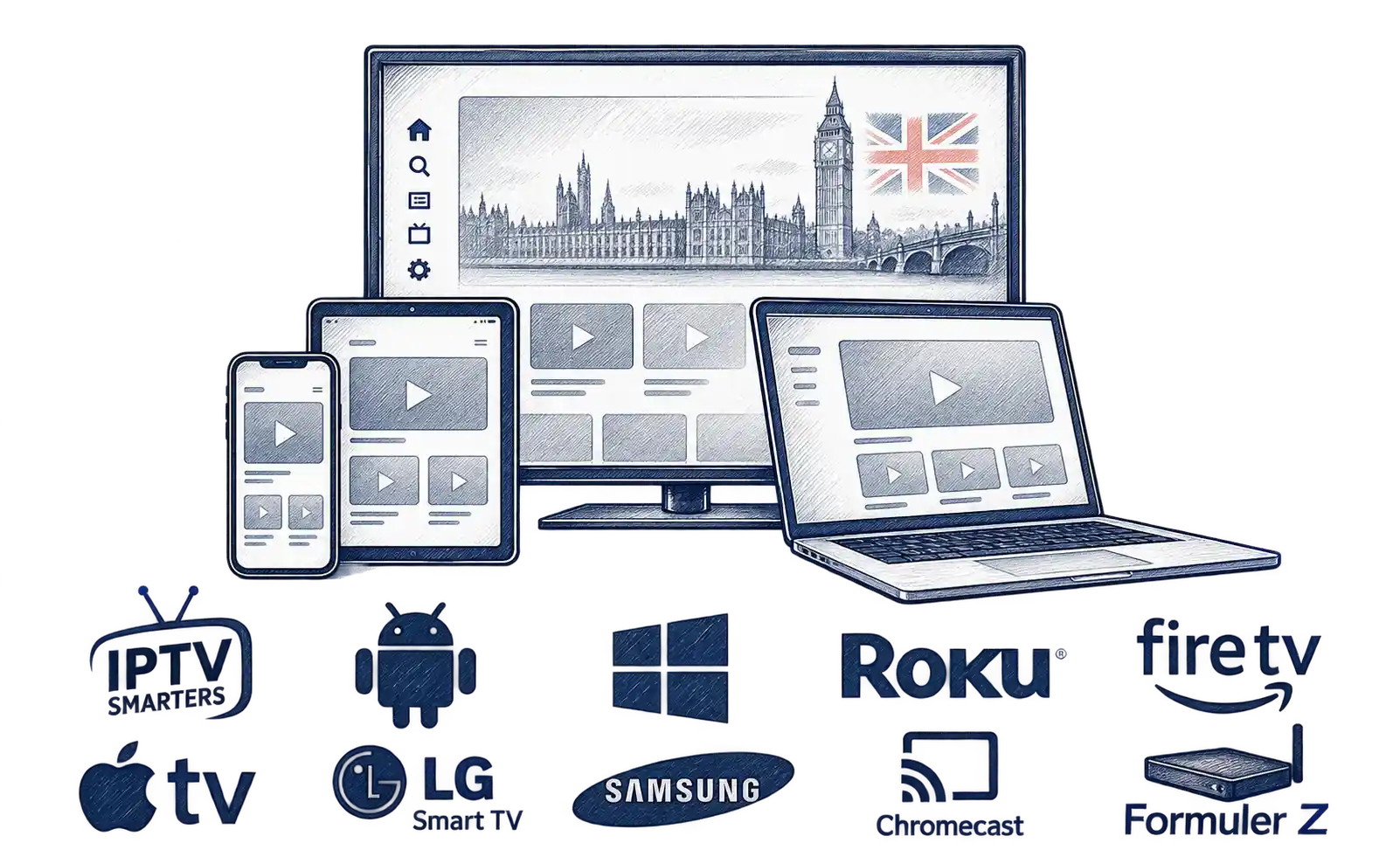
Enjoy live TV, sports, films and series on the devices you already own. IPTV Trial UK supports popular streaming options, including Smart TVs, Android TV, Apple TV, Amazon Fire TV Stick, smartphones, tablets and computers. If your television doesn’t support a suitable streaming app, an IPTV box can be a practical alternative. Whether you’re using a Firestick with IPTV or watching directly on your Smart TV, choosing the right device, a compatible player and a stable internet connection can help you enjoy a smoother streaming experience.
What Is an IPTV Box and How Does It Work?
An IPTV box is a streaming device that connects to your television, usually through an HDMI port, allowing you to watch live TV, sports, films and series using an internet connection. It’s particularly useful for older televisions that don’t support modern streaming apps. Simply connect the device to your TV and internet, install a compatible IPTV player and enter your login details. Before choosing a device, check its performance, app compatibility and supported picture quality to make sure it suits your viewing needs.
How to Watch IPTV on Apple TV
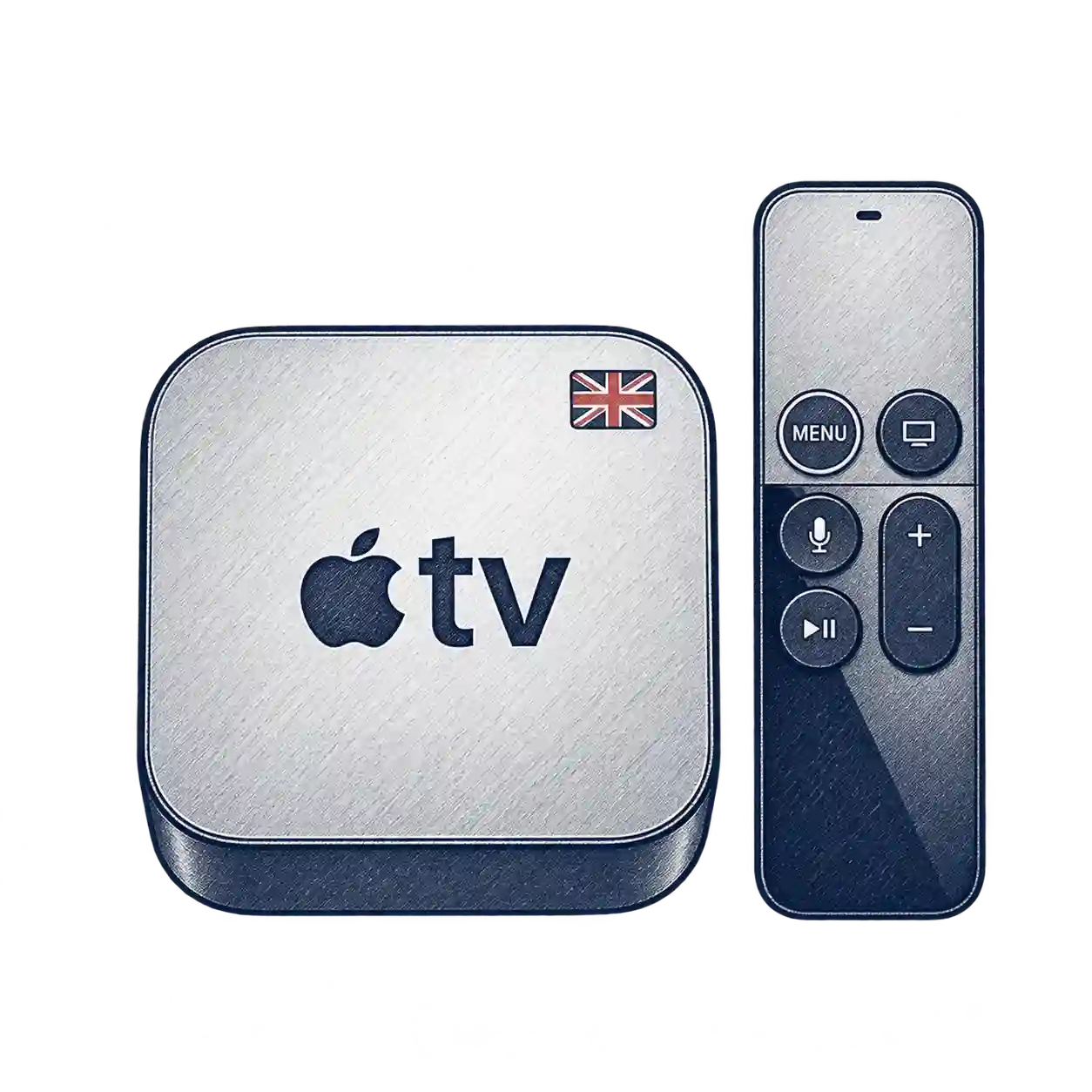
Apple TV is a popular IPTV box for watching live TV, sports, films and series. Install a compatible IPTV player from the App Store, enter your Xtream Codes or M3U playlist details and follow the setup instructions. IPTV Trial UK also works with compatible iPhones and iPads, giving you flexible streaming options across Apple devices.
How to Watch IPTV on Android TV & Android Boxes
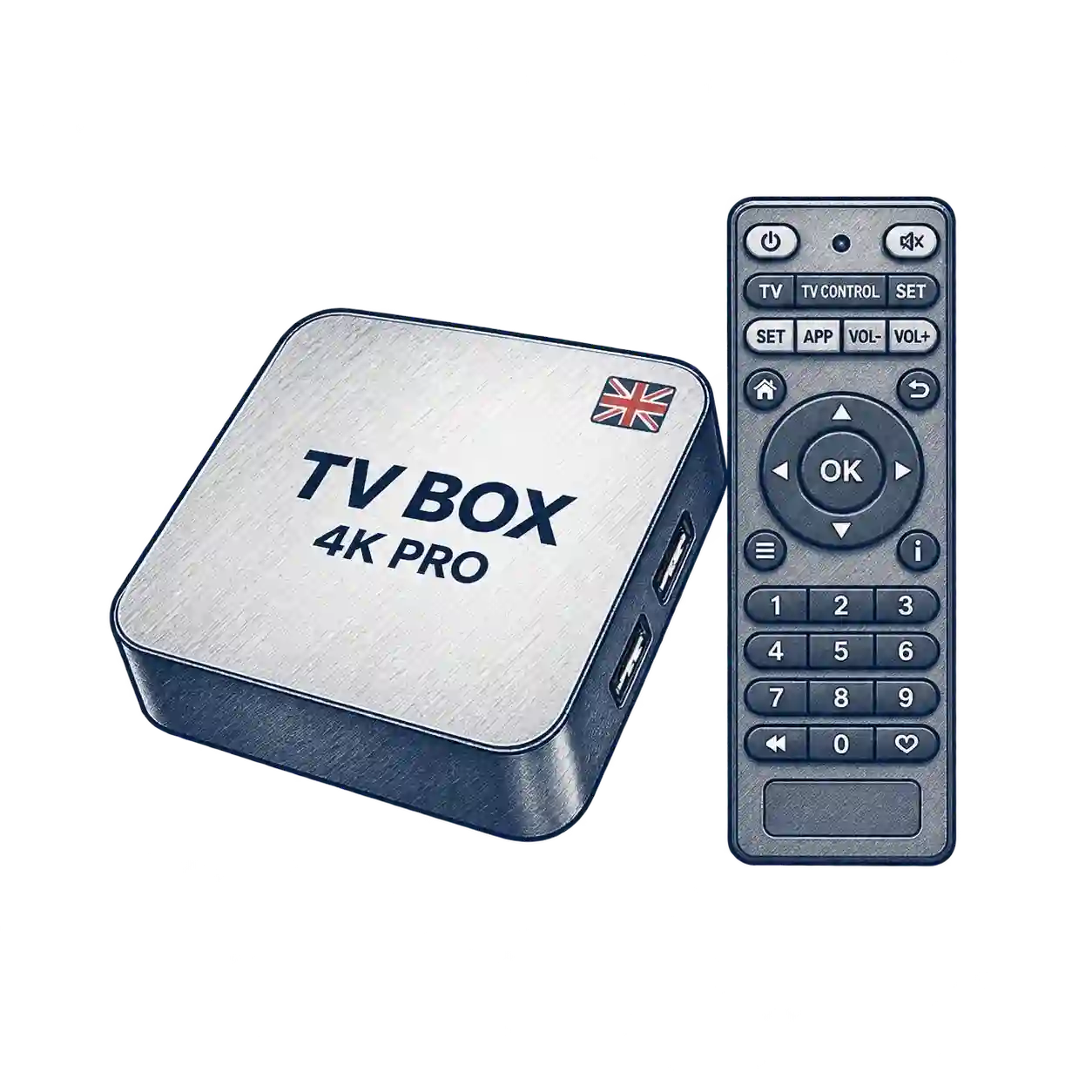
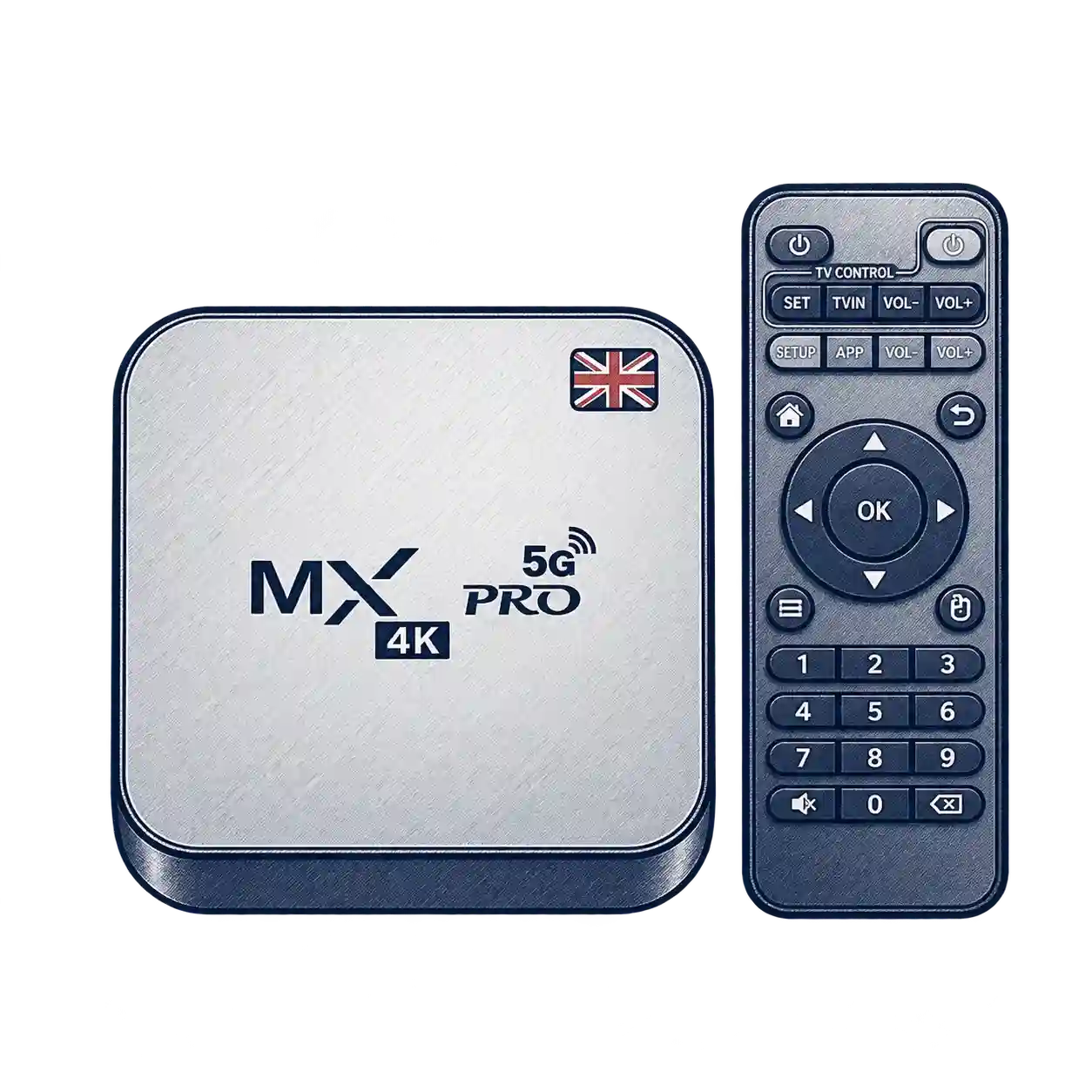
Android TV and Android streaming boxes offer a convenient way to watch live TV, sports, films and series on your television. Simply install a compatible IPTV player from Google Play, enter your Xtream Codes or M3U playlist details, and follow the setup instructions. An Android IPTV box can also be a practical option for older TVs with an HDMI connection, giving you access to streaming apps without replacing your television. Check device compatibility and app requirements before getting started with IPTV Trial UK.
How to Watch IPTV on Amazon Fire TV Stick
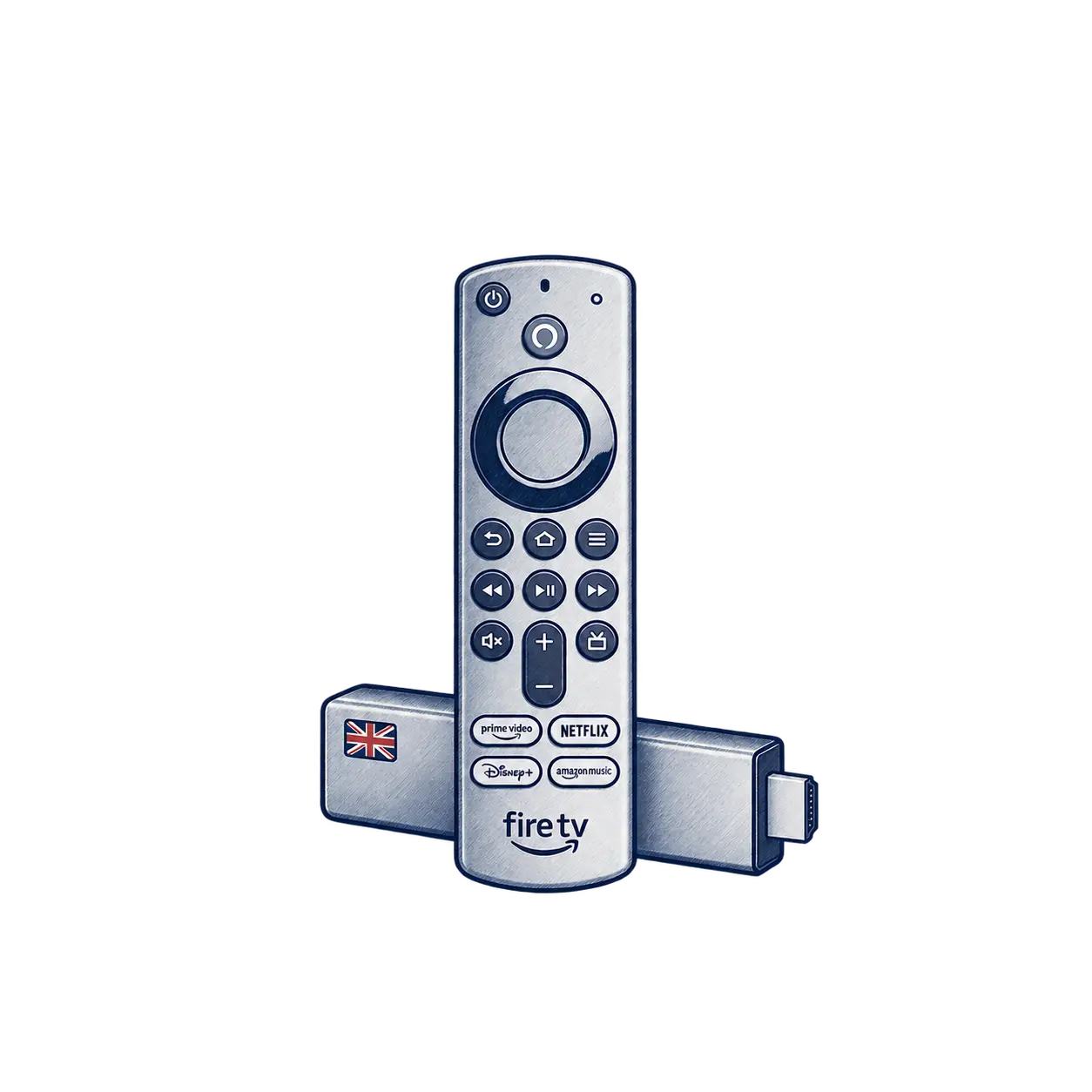
Amazon Fire TV Stick is a popular way to stream live TV, sports, films and series on a compatible television. To get started, connect your Firestick to an HDMI port, install a supported IPTV player and enter your Xtream Codes or M3U playlist details. Using a Firestick with IPTV gives you a convenient way to browse entertainment directly from your TV with the remote control. App availability and installation steps may vary depending on your Fire TV device.
How to Watch IPTV on Your Phone or Tablet
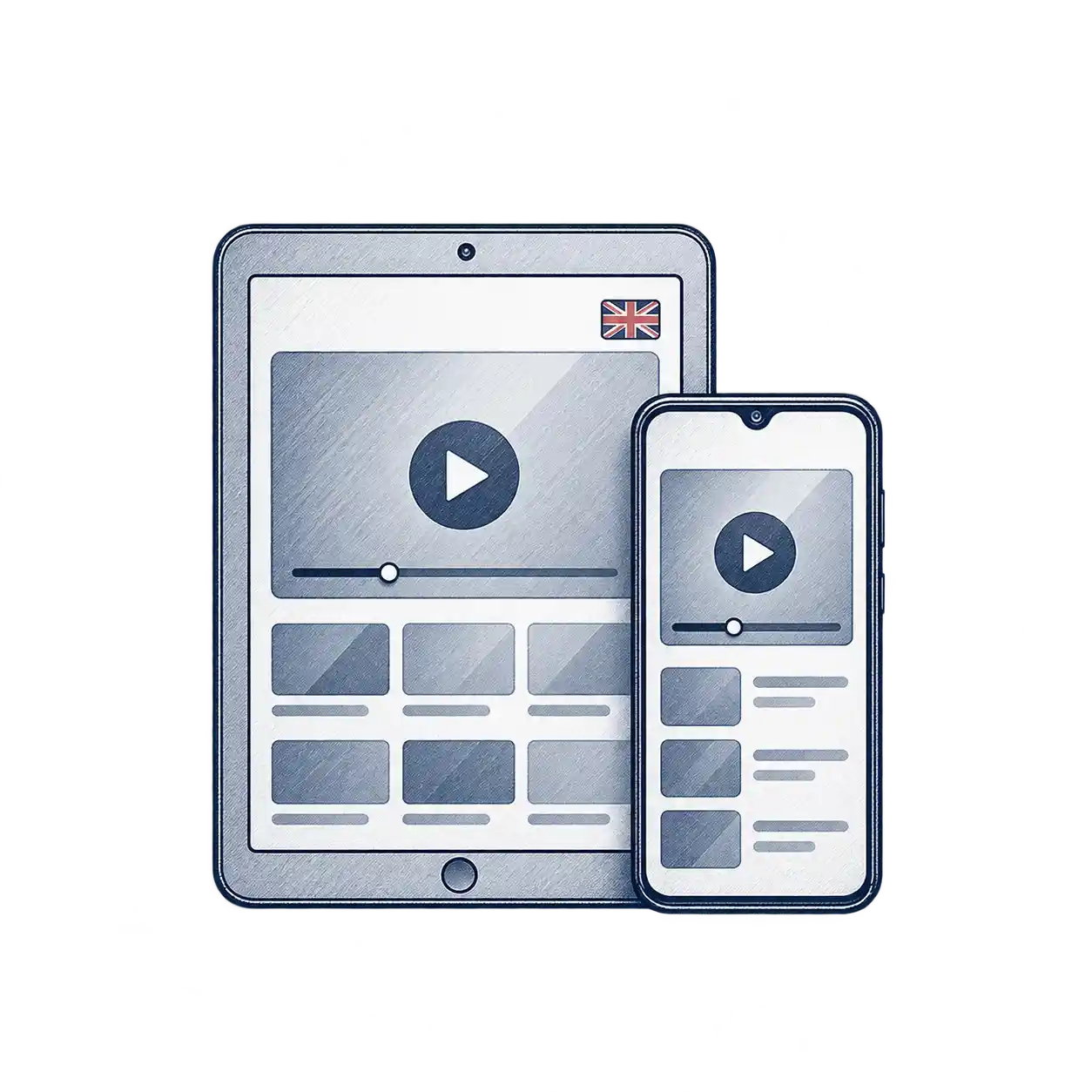
Enjoy live TV, sports, films and series on your iPhone, iPad or Android device with IPTV Trial UK. Unlike an IPTV box, mobile streaming lets you watch directly on your phone or tablet. Simply install a compatible IPTV app, enter your Xtream Codes or M3U details and start watching wherever you have a stable internet connection.
How to Watch IPTV on Samsung & LG Smart TVs
Watch live TV, sports, films and series on your Samsung or LG Smart TV without needing a separate IP TV box. Simply install a compatible IPTV player from your TV’s app store, enter your Xtream Codes or M3U playlist details and start streaming. App availability depends on your TV model, operating system and region.

How to Watch IPTV on Windows PC and Mac
You can watch live TV, sports, films and series on your Windows PC or Mac using a compatible IPTV player. Simply install an app that supports M3U playlists or Xtream Codes, enter your IPTV Trial UK login details and follow the setup instructions. Whether you’re using a desktop computer or laptop, streaming on a larger screen offers a convenient alternative to watching on your television. You can also connect your computer to a compatible TV using an HDMI cable
How to Watch IPTV on Chromecast
Chromecast lets you enjoy live TV, sports, films and series on a bigger screen without replacing your television. To watch IPTV using Chromecast, open a compatible streaming app on your smartphone or tablet, connect both devices to the same Wi-Fi network and select the Cast option. Your content will appear on your TV, provided the app supports Google Cast. It’s a convenient option for UK viewers who want to stream entertainment from their mobile device to their television.

Which IPTV App Is Best for Your Device?
Choosing the best IPTV app depends on your device, operating system and viewing needs. Popular options include IPTV Smarters, TiviMate and other compatible players for Smart TVs, Android TV, Amazon Fire TV Stick, Apple TV and mobile devices. Before installing an app, check whether it supports Xtream Codes or M3U playlists and is available for your device. A suitable player makes it easier to browse live TV, sports, films and series, whether you’re watching directly on your television or using a separate streaming device.
How to Choose the Best IPTV Box and Streaming App
Choosing the best IPTV box depends on your budget, television and viewing needs. Look for a streaming device with reliable performance, strong Wi-Fi connectivity, regular software updates and support for compatible IPTV apps. Android TV boxes offer flexible app options, while Amazon Fire TV Stick is a convenient choice for everyday streaming. Before buying, compare device specifications, 4K support, app compatibility and ease of installation. The right combination of hardware and software can make watching live TV, sports, films and series simpler and more enjoyable.
How to Install IPTV on Your Streaming Device
Setting up your IPTV box or streaming device is straightforward with the right app and login details. Whether you use an Android TV box, Amazon Fire TV Stick, Smart TV, Apple TV or computer, start by installing a compatible IPTV player. Enter your Xtream Codes login or M3U playlist details provided by IPTV Trial UK, then follow the instructions for your device. For detailed help, explore our step-by-step installation guide to check compatibility, complete your setup and start enjoying live TV, sports, films and series.
How to Set Up an IPTV Box or Android TV
How to Set Up IPTV on Samsung and LG Smart TVs
How to Set Up IPTV on Apple TV
How to Set Up IPTV on Amazon Fire TV Stick
How to Set Up IPTV on Android Phones and Tablets
How to Set Up IPTV on iPhone and iPad
How to Set Up IPTV on Chromecast
How to Set Up IPTV on Windows PC and Mac

Why a Stable Internet Connection Matters for IPTV
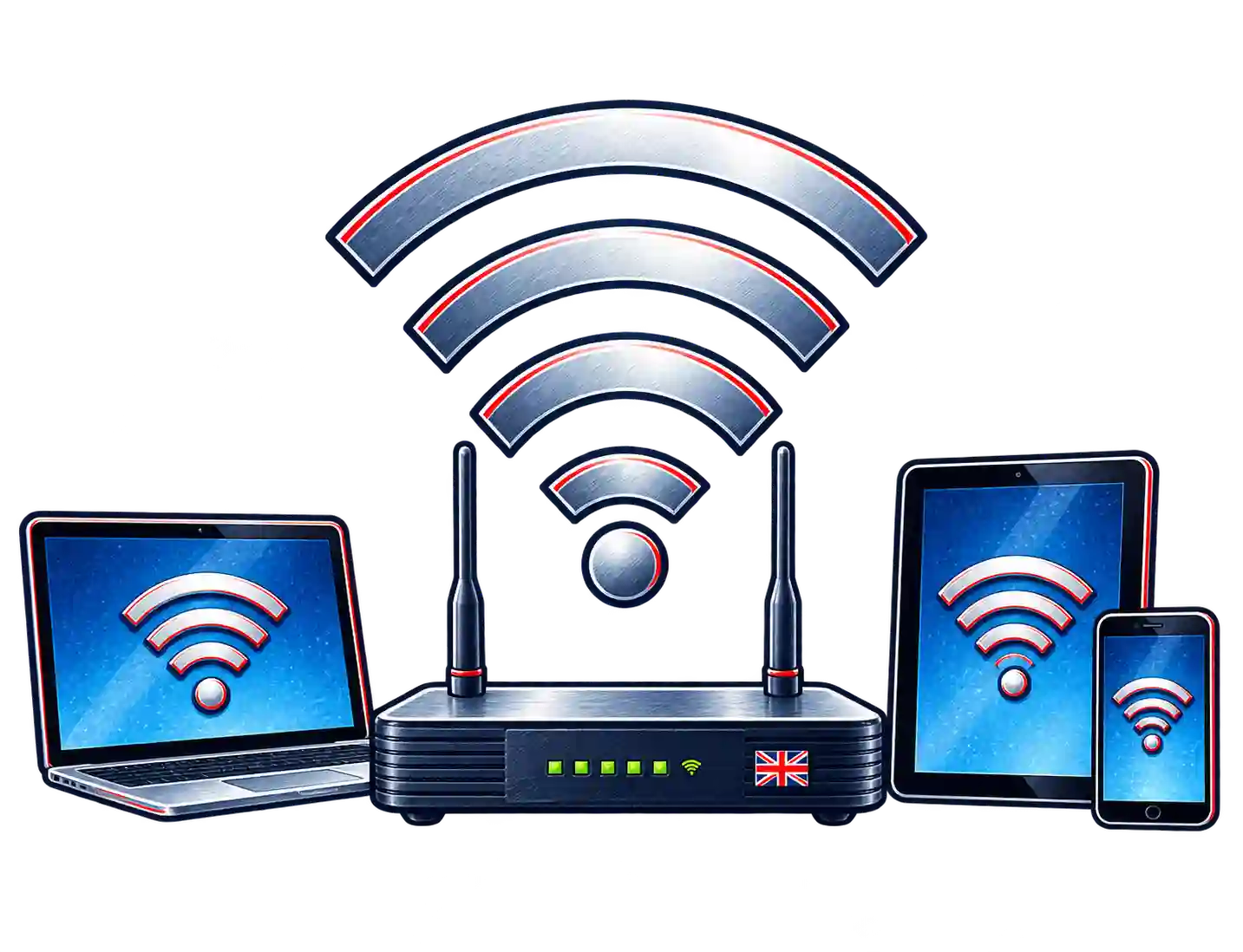
A stable internet connection is essential for smooth IPTV streaming, especially when watching live TV, sports, films and series in HD or 4K. If your IPTV box keeps buffering or freezing, the problem may be caused by weak Wi-Fi, network congestion, device performance or the streaming source. For better results, place your router closer to your streaming device, reduce unnecessary network activity or use an Ethernet cable where supported. A wired connection can offer more consistent performance, particularly when watching high-quality content.
IPTV Box vs Smart TV – Which Is Better for You?
Choosing between an IPTV box and a Smart TV depends on your television, preferred apps and viewing habits. Many modern Smart TVs let you install a compatible IPTV player directly, so you may not need additional equipment. A separate streaming box can be useful if your TV doesn’t support the apps you want or has limited software features. Before deciding, compare device compatibility, performance, ease of setup and overall cost to find the best option for watching live TV, sports, films and series.

What Makes a Good IPTV Box for Streaming?
A good IPTV box should be fast, easy to use and compatible with your favourite streaming apps. Look for reliable Wi-Fi, sufficient memory, regular software updates and support for HD or 4K playback. Before buying, check the device’s HDMI connections, processing power, remote control and compatibility with your preferred IPTV player. Choosing the right streaming box can help you enjoy live TV, sports, films and series with smoother navigation and fewer technical difficulties, without paying for features you don’t need.

Which IPTV App Works Best with Your IPTV Box?
Choosing the right IPTV app for your IPTV box can make a real difference to your viewing experience. Popular players such as TiviMate and IPTV Smarters offer features for browsing live TV channels, films and series on compatible devices. Before installing an app, check whether it supports your device, Xtream Codes or M3U playlists. Some players also offer an electronic programme guide (EPG), favourites and parental controls. Compare compatibility, ease of use and available features to find a player that suits your streaming needs.
How to Check IPTV Device and App Compatibility
Not every streaming device supports the same IPTV apps. Before setting up your IPTV box, check its operating system, available app store and support for Xtream Codes or M3U playlists. Android TV boxes, Smart TVs, Fire TV Stick and Apple TV may require different apps or installation methods. Choosing compatible software, keeping your device updated and using a stable internet connection can help prevent setup problems and provide a smoother viewing experience.
Frequently Asked Questions About IPTV Boxes & Devices
Choosing the right streaming device can raise a few questions, especially if you’re new to IPTV. Whether you’re comparing Android TV boxes, Amazon Fire TV Stick or Smart TVs, understanding device compatibility, installation requirements and app support can help you make a better decision. Below, we answer common questions about using an IPTV box, choosing suitable apps and getting started with
What Is an IPTV Box and How Does It Work?
Which IPTV Box Should I Choose in the UK?
Can I Watch IPTV on Android Devices?
Can I Watch IPTV on Chromecast?
Can I Watch IPTV on Apple TV?
Can I Watch IPTV on a Windows PC or Mac?

Find the Right IPTV Setup for Your Device
Whether you use a Smart TV, Android TV box, Amazon Fire TV Stick, Apple TV, Chromecast or computer, choosing the right streaming setup makes all the difference. If you prefer a dedicated IPTV box, IPTV Trial UK can help you get started with compatible apps, straightforward installation guidance and flexible subscription options. Explore our plans or request a free 1-day trial to test the streaming experience on your device before subscribing.