IPTV Firestick: Setup Guide, Xtream Codes & Common Fixes
IPTV Firestick: Setup, Xtream Codes Login and Fixes
What you need before starting
For IPTV Firestick viewing, prepare a television with an available HDMI port, the stick’s supplied power equipment, its remote, an Amazon account and an internet connection. You also need a compatible player and active service credentials. The hardware alone does not include an IPTV channel package.
If your question is “Amazon Fire Stick: how does it work?”, the short answer is that the device connects to your TV and runs supported streaming applications. Your player handles the viewing interface, while your service provides access to its available content.
Keep your Wi-Fi password separate from your subscription password. Have the server address, username and password ready, and check whether your account uses Xtream Codes or an M3U playlist. Those are different input methods; choosing the wrong one can prevent a valid account from loading.
Check your Fire TV model and operating system
Before following an IPTV Firestick installation tutorial, identify the exact model in the device information screen. Look under Settings, then My Fire TV or Devices & Software, and About. Menu names can vary, so use the equivalent information section on your device.
Amazon’s range includes Fire OS and Vega OS devices. Fire OS supports Android applications, while Vega uses a different application format. For example, Amazon lists the Fire TV Stick 4K Select with Vega OS and the Fire TV Stick 4K Plus with Fire OS 8.
A 4K Fire Stick name therefore does not confirm Android APK compatibility. Check the generation and operating system before downloading anything. For IPTV Firestick on a Vega model, choose a player explicitly available for that platform; an Android installer will not become compatible by changing settings.
Likewise, buying a 4K device does not turn every stream into 4K. Your television, source content, application and connection all influence the viewing result. Check the actual stream quality during testing rather than relying on the device’s product name.
Step 1: Connect and prepare your IPTV Firestick
Begin IPTV Firestick setup by putting batteries into the remote and connecting the stick to an HDMI port. Attach the supplied USB cable and power adapter, plug the adapter into a wall socket, then select the correct HDMI input on your television.
Follow the on-screen instructions to connect to Wi-Fi and register the device with your Amazon account. Amazon recommends using the power adapter rather than powering the stick directly from the television’s USB port. Complete the device setup before installing your IPTV player.
Use the Amazon Fire Stick remote to confirm that navigation works normally. Check for system updates in the About section and allow installation to finish. If the home screen or network connection already behaves poorly, resolve that first; adding a player will not fix the underlying setup.
Step 2: Install a compatible IPTV Firestick player
The simplest IPTV Firestick installation route is the Amazon Appstore when your chosen player is available for your device and region. From the main menu, open Find or Search, enter the application name, select the correct listing and choose Get or the download option.
Check the developer’s identity and supported login methods before installing. Applications with similar names are not necessarily the same product. A player should support your credentials, television navigation and required features; it does not need to include every feature advertised elsewhere.
When comparing the best Firestick apps for your setup, prioritise compatibility, clear menus and reliable access to your own account. Ask whether player activation or premium features cost extra. An application fee and a service subscription are separate purchases unless explicitly stated otherwise.
For IPTV Firestick, avoid choosing an application merely because another website calls it the best. Check its current developer documentation and ask your service which supported player they can help you configure.
If your Fire OS device requires manual installation
On supported Fire OS models, an application may be installed outside the Appstore using its developer’s official installer. Confirm compatibility first. Use a verified developer download address rather than an unexplained numeric download code or a modified application from an unrelated website.
Where supported, install an appropriate download tool and enable its installation permission under Developer Options. Some Fire OS versions reveal that menu after selecting the device name seven times in About. Look for Install Unknown Apps or the equivalent permission and authorise only the intended tool.
Open the official installer, follow its installation prompts and launch the player. Afterwards, remove an unnecessary installer file and disable the permission when finished. This IPTV Firestick route is model-dependent: if the setting is unavailable, check your operating system and current documentation instead of repeating incompatible instructions.
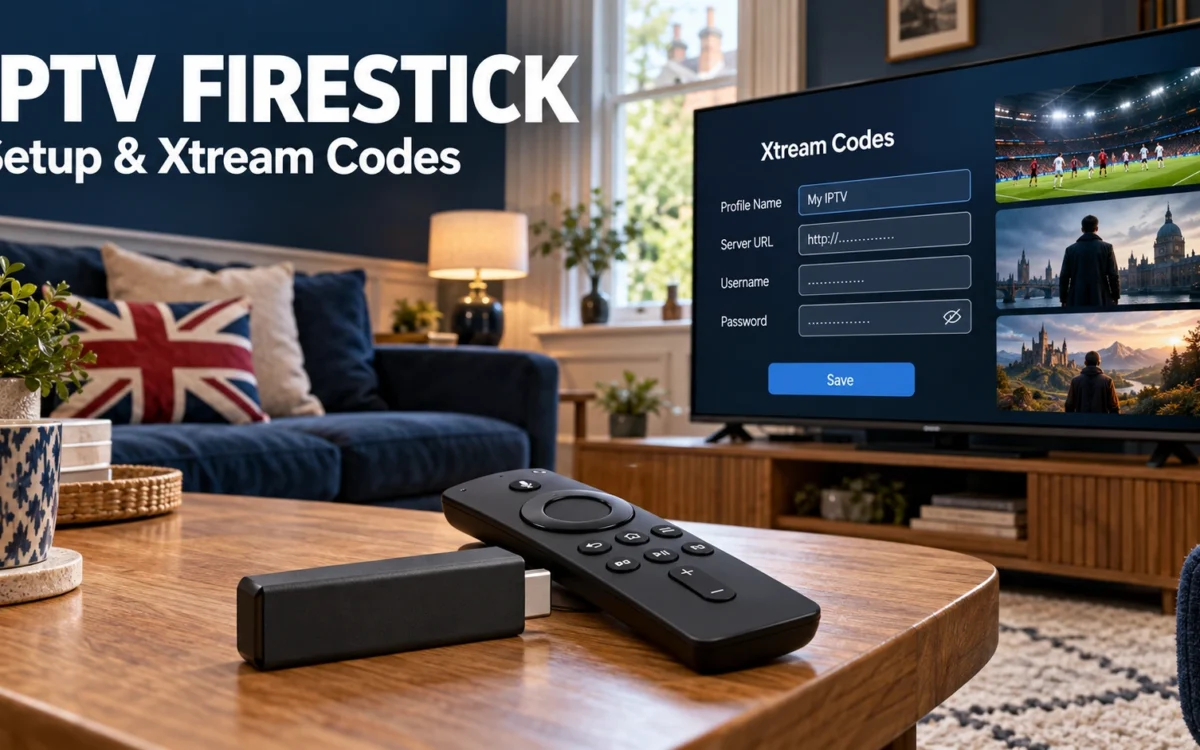
Step 3: Enter your IPTV Firestick Xtream Codes login
For IPTV Firestick players with Xtream Codes support, open the application and choose Add User, Add Playlist or the equivalent account option. Select Xtream Codes API when that is the format your service supplied. The exact button names depend on the player.
Typically, you enter a server address, username and password. Some applications also request a profile name, which is simply a label to help you recognise the account. This is not an Amazon activation code, and it is not a single short number.
| Field | What to enter | Common mistake |
|---|---|---|
| Profile name | A recognisable label, if requested | Confusing it with the service username |
| Server URL | The exact address supplied by your service | Changing the protocol or omitting a supplied port |
| Username | Your issued account username | Entering your Amazon account email instead |
| Password | Your issued account password | Typing the Wi-Fi password or adding spaces |
Keep any supplied http:// or https:// prefix and port exactly as instructed. Do not guess a different server address. Check capital letters and accidental spaces, then select the player’s confirmation button and wait for the account to load.
If your IPTV Firestick login details arrive as one long M3U URL, use the player’s M3U option instead. Ask your service to clarify the format if uncertain. Avoid publishing screenshots of credentials or playlist URLs, because they may expose account access.
Step 4: Check channels, movies and the guide
After the IPTV Firestick account loads, open several categories and try more than one programme. Test live television separately from movies or series where those are included. An account can authenticate successfully even when a particular stream or category needs attention.
Check the programme guide if your service supplies one. Missing listings do not always mean that channels cannot play. Use the player’s guide refresh option where available, and ask whether the affected channels have guide data before changing time offsets or adding another URL.
If you want British IPTV or United Kingdom IPTV content, confirm the current selection with your service. At IPTV Trial UK, our offering includes British and international categories, live sports, children’s channels, movies and TV shows. Ask about specific viewing priorities before purchase.
Fix common IPTV Firestick problems
Invalid username, password or server
Recheck all three fields against the original message. Ask whether the account is active and whether its connection allowance is already being used. Repeatedly reinstalling the player will not correct a mistyped password, expired account or incorrect server address.
The application opens but content stays empty
Allow the initial loading process to finish, then use the available playlist refresh option. Confirm that you chose the correct login method. Tell support whether every category is empty or only one section, and include the exact error message.
Playback buffers or stops
For IPTV Firestick buffering, compare different streams and check whether other internet applications also struggle. Restart the player and device, reduce competing downloads, and test a compatible wired connection if available. These checks help identify local network issues without assuming every interruption has the same cause.
The player crashes or storage is low
On Fire TV, open Settings, Applications and Manage Installed Applications, then select the player and Clear Cache. Restart it afterwards. Clearing data is a separate action that can reset saved information; keep your login details available before using it.
If IPTV Firestick crashes continue, check application and system updates or consider reinstalling the compatible player. Note the model, player version and affected action when contacting support. Change one setting at a time so you can tell which adjustment helped.
Test before choosing your subscription
A useful IPTV trial checks the same television, player and connection you will use afterwards. Browse your favourite categories, watch long enough to assess normal playback, and try the setup during your usual viewing hours. One successful stream is only an initial check.
Before ordering a UK IPTV subscription, confirm the plan duration, permitted simultaneous connections and relevant terms. If you search for an IPTV UK subscription or compare IPTV services, distinguish confirmed package details from broad advertising claims.
For Firestick with IPTV, compatibility comes before commitment. Ask IPTV Trial UK about your model and preferred player, then request current trial information. A practical test gives you evidence about your setup without promising identical performance for every future programme.
Once your IPTV Firestick test works, organise a small favourites list and confirm you can reopen the player after restarting. Review parental controls if children share the television. Save your account information privately, and keep the support contact available for questions about activation or access.
Frequently asked questions
Does a Firestick include IPTV channels?
No. You need a supported application and access supplied by your chosen service. Installing a player does not automatically activate a channel package. Confirm what your account includes before choosing an IPTV sub.
Can every Fire TV Stick install Android players?
No. Check the operating system and exact model. Fire OS and Vega OS use different application formats, so an APK tutorial does not apply universally. Find a supported application for your device before attempting installation.
What should I check before asking for help?
Record your device model, player name, login method and error message. Check whether the problem affects authentication, menus or playback. Keep passwords private, and explain which basic checks you have already tried.
Finish your IPTV Firestick setup with a practical test
Confirm compatibility, install the correct player, enter your credentials carefully and test the content you actually watch. With those steps completed, you can assess your viewing experience and ask focused questions before choosing a subscription.